Casino Game Analyst

How to Turn On Hardware Acceleration in Chrome
Quick Answer
To turn on hardware acceleration in Chrome, open chrome://settings/system, switch on "Use graphics acceleration when available", click Relaunch, then reopen the game. Some games, including Relax Gaming titles, need this setting to load and otherwise stay on a black screen.
You must be 18+ to access this content. Please gamble responsibly.
Key Facts
| Setting name | Use graphics acceleration when available |
| Where to find it | chrome://settings/system |
| Default state | On |
| Restart needed? | Yes, click Relaunch |
| Typical symptom when off | Black screen or a game that never finishes loading |
| Games affected in QA | Certain titles, notably from Relax Gaming |
| How to confirm it works | chrome://gpu shows WebGL as Hardware accelerated |
| Time needed | About one minute |
Hardware acceleration in Chrome, which the browser now calls graphics acceleration, lets Chrome use your computer's graphics chip. Most people never touch it, but if it is switched off, some browser games stay on a black screen or never finish loading. During testing, the Flush QA team found that certain games, including titles from Relax Gaming, failed to load with the setting off and loaded normally once it was turned back on. This guide shows you how to turn on hardware acceleration in Chrome in about a minute.
What Is Hardware Acceleration in Chrome?
Hardware acceleration, which Chrome now labels graphics acceleration, lets Chrome hand graphics work to your computer's graphics chip (the GPU) instead of doing everything on the main processor (the CPU). The GPU is built for drawing images, animations and 3D scenes, so it does that work much faster.
In Chrome the setting is called Use graphics acceleration when available. It is on by default, but it can end up switched off: someone may have turned it off to fix a different problem, a guide may have suggested it, or an organization may manage the browser on a work computer.
Why Hardware Acceleration Matters for Browser Games
Most modern online casino games run directly in your browser and draw their reels, animations and effects with a web technology called WebGL, which relies on the GPU. When graphics acceleration is off, Chrome may not be able to give a game the graphics support it needs. Some games cope; others cannot start their graphics engine at all. Typical signs are a game window that stays black, a loading bar that never finishes, a game that stops on the provider's logo, or an error saying the game failed to initialize.
How to Enable Hardware Acceleration in Google Chrome
These steps work in Chrome on Windows, macOS and Linux.
Step 1. Open Google Chrome.
Step 2. Go to the System settings page. Click the address bar at the top of the window, type chrome://settings/system and press Enter. You can also open the three-dot menu (⋮) in the top-right corner, choose Settings, then click System in the left-hand menu.
Step 3. Find the setting. At the top of the page, under System, look for Use graphics acceleration when available. If the switch on the right is grey, the setting is off.
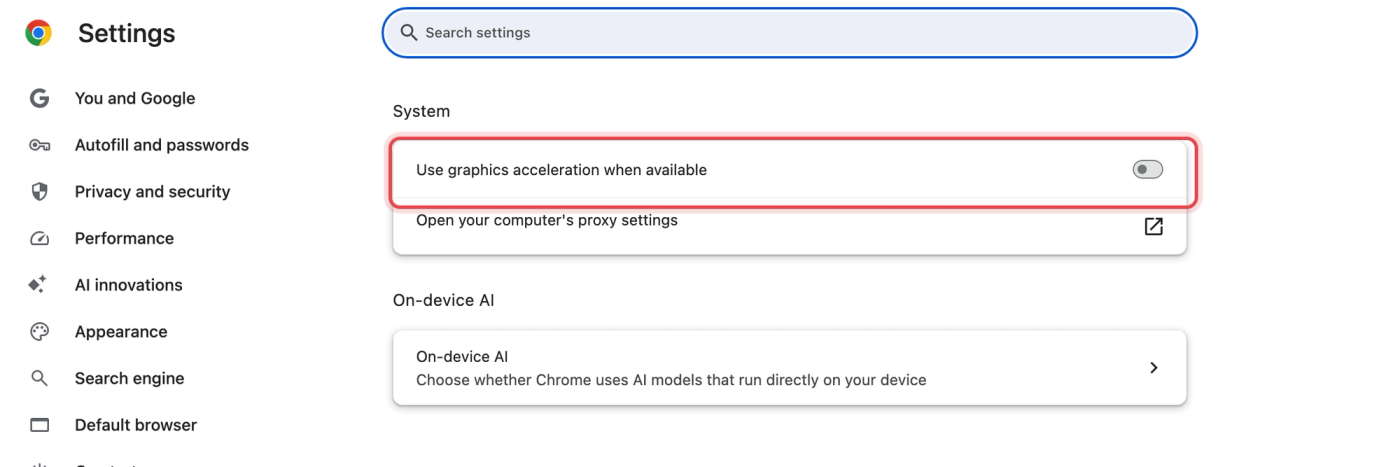
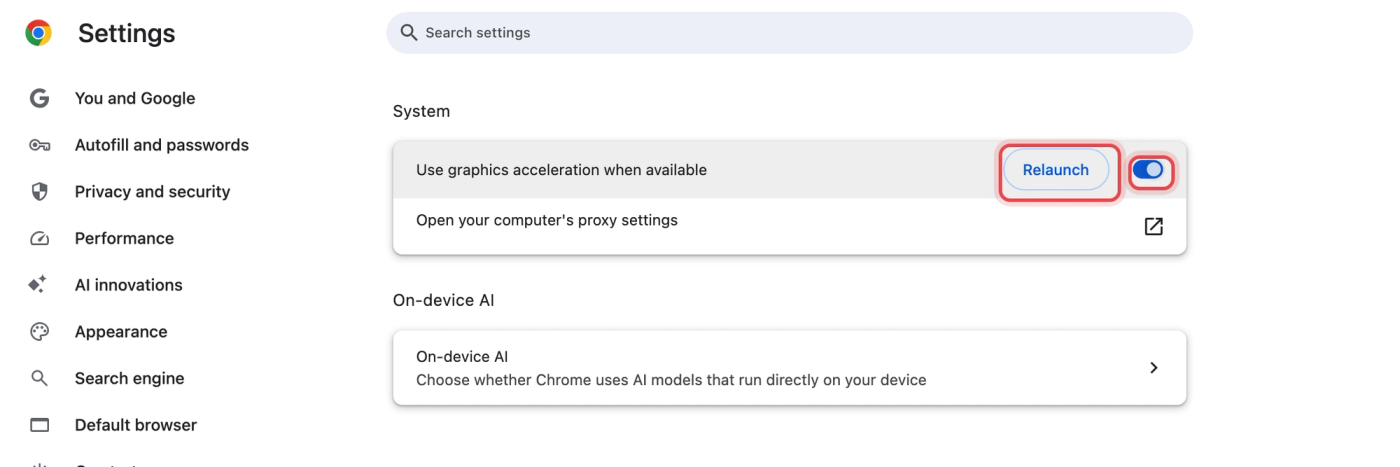
Step 4. Enable the setting. Click the switch so it turns blue. A Relaunch button appears next to it.
Step 5. Click Relaunch to restart Chrome. The change only takes effect after Chrome restarts. Chrome closes and reopens with your tabs restored. If you are in the middle of a game round, finish it before you relaunch.
Step 6. Return to Flush.com and launch the game again. Open the game that was not loading. If the setting was the cause, the game now loads normally.
If the switch is already on
If the switch was already blue, graphics acceleration is not the cause and nothing needs to change here. See our guide on what to do when a casino game is not loading for the other common causes.
If you cannot change the switch
On a work or school computer the setting may be locked by your organization. Chrome then shows a building icon next to the switch and a note that your browser is managed. Only the administrator of that device can change it, so ask them or try another device.
How to Check That It Worked
To confirm that Chrome is now using your GPU, type chrome://gpu in the address bar and press Enter. Under Graphics Feature Status, the WebGL lines should say Hardware accelerated. If they say software only or disabled, your graphics driver may need updating, or your device may not support graphics acceleration.
Will This Fix Every Game That Does Not Load?
No. Enabling graphics acceleration fixes loading problems with certain games, but it does not guarantee a fix for every game-loading problem. A game can also fail because of your connection, a browser extension, an outdated browser or driver, or a temporary issue at the game provider. If the game still does not load after you relaunch Chrome, work through our step-by-step guide to fixing a casino game that is not loading.
More Help for Browser Games
Once the setting is on, browse the full casino game library at Flush, or read our Money Train 4 review from Relax Gaming, one of the providers we saw this problem with. Before any session, check the deposit limits and break tools on the responsible gaming page.
How We Researched This
Methodology
This guide comes from Flush QA testing. While testing the casino in Google Chrome, the team found that certain games, particularly titles from Relax Gaming, stayed on a black screen or failed to initialize when Chrome's graphics acceleration setting was turned off. Turning the setting on and relaunching Chrome let the same games load. The steps and screenshots were taken from the current desktop version of Google Chrome, and the explanation of WebGL and GPU use follows Chrome's own settings and chrome://gpu report.
What To Know
Key Benefits
- Fixes black screens on certain games, including some Relax Gaming titles
- Takes about a minute and needs no downloads
- Is Chrome's default setting, so turning it on is safe
- Can make games and animations run more smoothly
Things To Watch
- Chrome must be relaunched before the change applies
- It does not fix every game-loading problem
- Managed work or school computers may lock the setting
- Very old graphics hardware or drivers may not support it
Why Trust This Guide
Based on Flush QA testing of games that failed to load in Google Chrome, and verified against the current desktop version of Chrome's settings.
FAQ
Frequently Asked Questions
How do I turn on hardware acceleration in Chrome?
What does hardware acceleration do in Chrome?
Is it safe to turn on hardware acceleration?
Do I need to restart Chrome after changing the setting?
The setting is already on and the game still does not load. What now?
Why can't I change the graphics acceleration setting?
Sources
- Chrome for Developers: WebGPU troubleshooting tips and fixes — accessed November 25, 2026
- Adobe Help: Troubleshoot WebGL in Elements on the Web — accessed November 25, 2026
- Chromium Blog: GPU acceleration and old drivers — accessed November 25, 2026

Share This Post
Share this post for your chance to win!
Related Posts
Level up your knowledge
Is There a Casino in GTA 6? What Is Confirmed
Is there a GTA 6 casino? No casino or card games are confirmed at launch. Here is what is known about gambling in Leonida and what GTA Online could add.
5 min read
Elon Musk Crypto Casino: How the Deepfake Scam Works
Elon Musk does not own a crypto casino. Sites claiming he does use deepfake videos, promo codes and fake balances to make you deposit. Here is how the scam works, the red flags, and what to do.
5 min read

Monero Casino: How XMR Gambling Works and the Trade-Offs
A Monero casino accepts XMR, the privacy coin that hides senders, receivers and amounts. Here is how Monero's privacy works, why fewer casinos accept it, what to check, and the privacy options at Flush.
5 min read